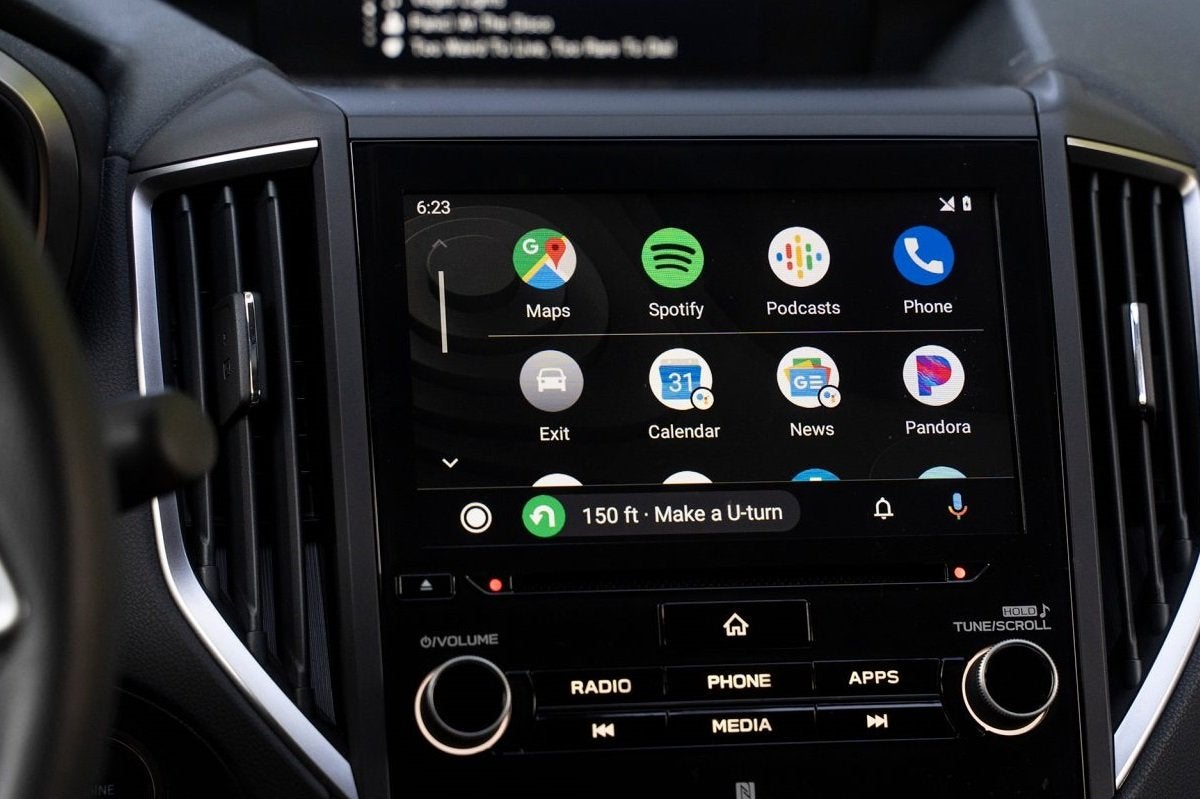
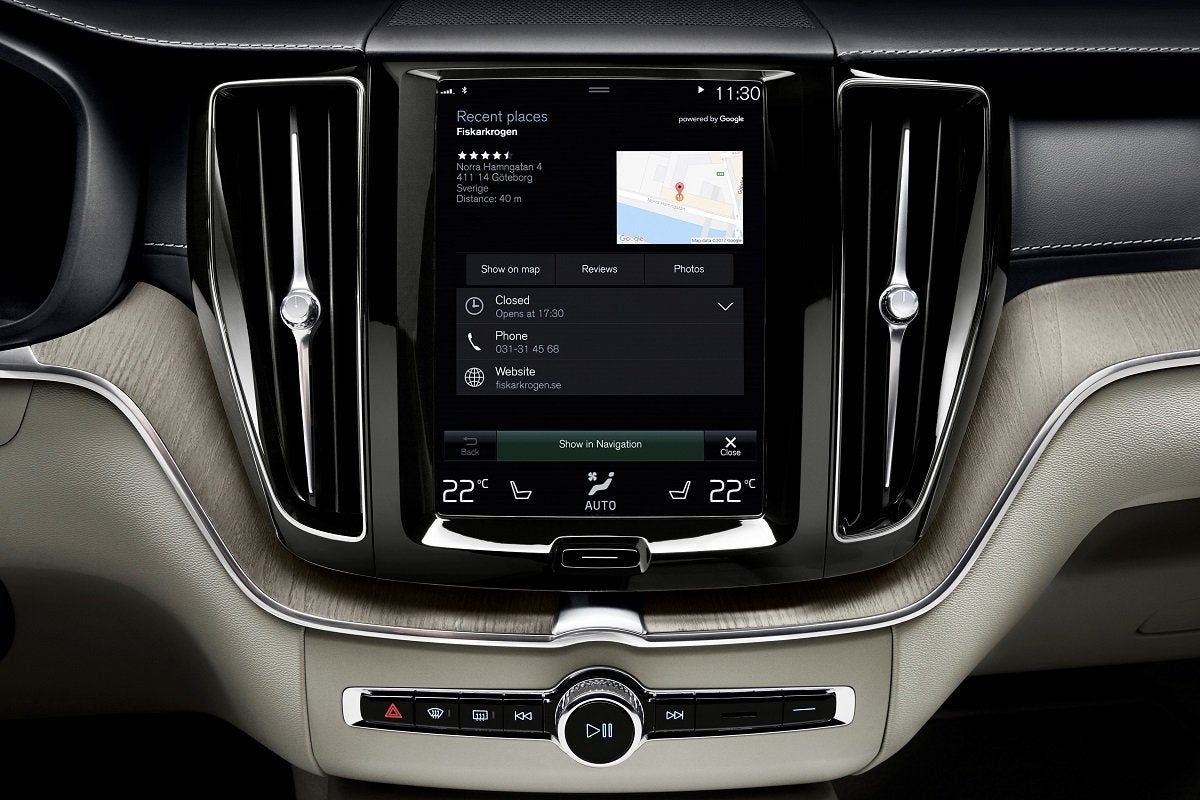
Android Auto from Google is the tech giant’s rival to Apple CarPlay. It allows drivers to connect their Android smartphone to their car and access apps for navigation, music, messaging and, of course, calls.
Using the in-car infotainment display, Android Auto offers hands-free access to many of your phone’s functions and features, while keeping your attention on the road.
What is Android Auto?
- How Do I Use Android Auto?
- What Can Android Auto Do?
- Can I Use Android Auto in an Older Car?
- Is it Safe to Use Android Auto While Driving?
- What Phones Work with Android Auto?
- Car Manufacturers Offering Android Auto
How Do I Use Android Auto?
Android Auto works with smartphones based on Google’s Android technology. You will need a phone that uses the Android 5.0 operating system – also known as Lollipop – or newer and you’ll need to download the Android Auto app from the Google Play store (it’s free). If your phone runs Android 10 or later, then the Android Auto app will already be built-in.
In terms of your car, Android Auto was first launched in 2015, so your car will need to be newer that that to have a chance of being compatible, and even then, it may not be if it was built soon after that, or if it's a basic model in a basic spec.
With brand new cars, the only car company operating in the UK that doesn't offer Android at all is Tesla. Tesla says that's because the firm's own software provides most of the same functionality, and incorporating Android Auto on top would remove some of the software's existing functionality.
There are other firms that haven't always offered Android Auto, either. For example, the Ora Funky Cat/03 was on sale in the UK for around 18 months without offering it. In May 2024, however, the company issued a software update that applied Android Auto to brand new examples, and the update was also provided to existing owners as well. The entry-level versions from some models from more budget-focused brands, including, Dacia also miss out on Android Auto, but you can have it if you venture a little further up the trim range.
When Android Auto has been installed, make sure your smartphone has a good signal. Open the Android Auto app and connect your phone to the car with a USB cable, or wirelessly if your car has that capability.
This will take you to the Android Auto screen on the car’s head unit and then you simply follow the prompts in the same way you would when hooking up to Bluetooth or Apple CarPlay. When you’ve approved all the permissions from Android Auto, you’re all set, and the system will connect automatically every time you get in the car and connect.
You can use the controls that are already in the car and you’re familiar with to operate Android Auto. The connectivity is seamless, so you can use the head unit’s buttons and rotary dials, steering wheel controls or the infotainment’s touchscreen.
Another feature of Android Auto is voice commands, which you can use just like you would with an Amazon Alexa. This lets you ask for music from Google Play or other Android apps, such as Spotify or Audible, for audiobooks and podcasts – all via voice control.
You can also use Android Auto as a standalone application without connecting your smartphone to the car. This gives drivers many of the hands-free features of an integrated infotainment system in older used cars that are not otherwise compatible with this type of technology. However, you do have use the set-up responsibly and not touch the phone while driving.
What Can Android Auto Do?
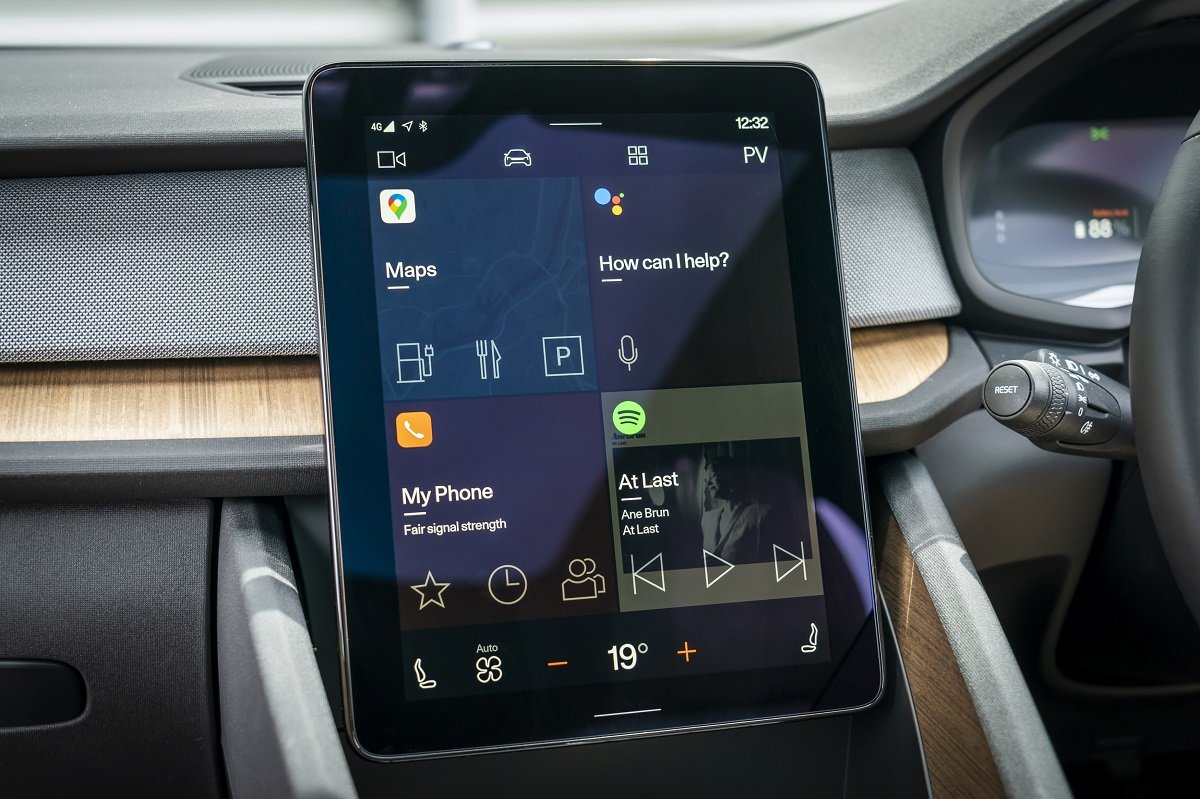
Android Auto provides most of the functionality and connectivity that you enjoy with your smartphone when it’s paired to the car’s infotainment system. This means you can listen to music playlists from Google Play, Spotify, Amazon Music or other similar choices from the Google App Store. If you prefer listening to podcasts, you can do this through apps such as Audible or Stitcher. Think of it as a phone screen in your car’s dashboard.
Just like Apple CarPlay and the iOS operating system, Android Auto is also designed to make or receive calls and text messages easily. This is most easily done using Google Assistant for voice commands to find contacts from the phone list. Or, you can simply select one of your contacts on the car's touchscreen.
When it comes to messaging, Android Auto will read out texts and Google Hangouts messages, and it can also be used with WhatsApp. It lets you dictate a reply, too, so you don’t need to take your hands off the steering wheel. The system also lets you select which apps you can use while driving to minimise distractions and reduce what’s on the car’s display, and you cannot connect your phone to Android Auto while driving for the same reason.
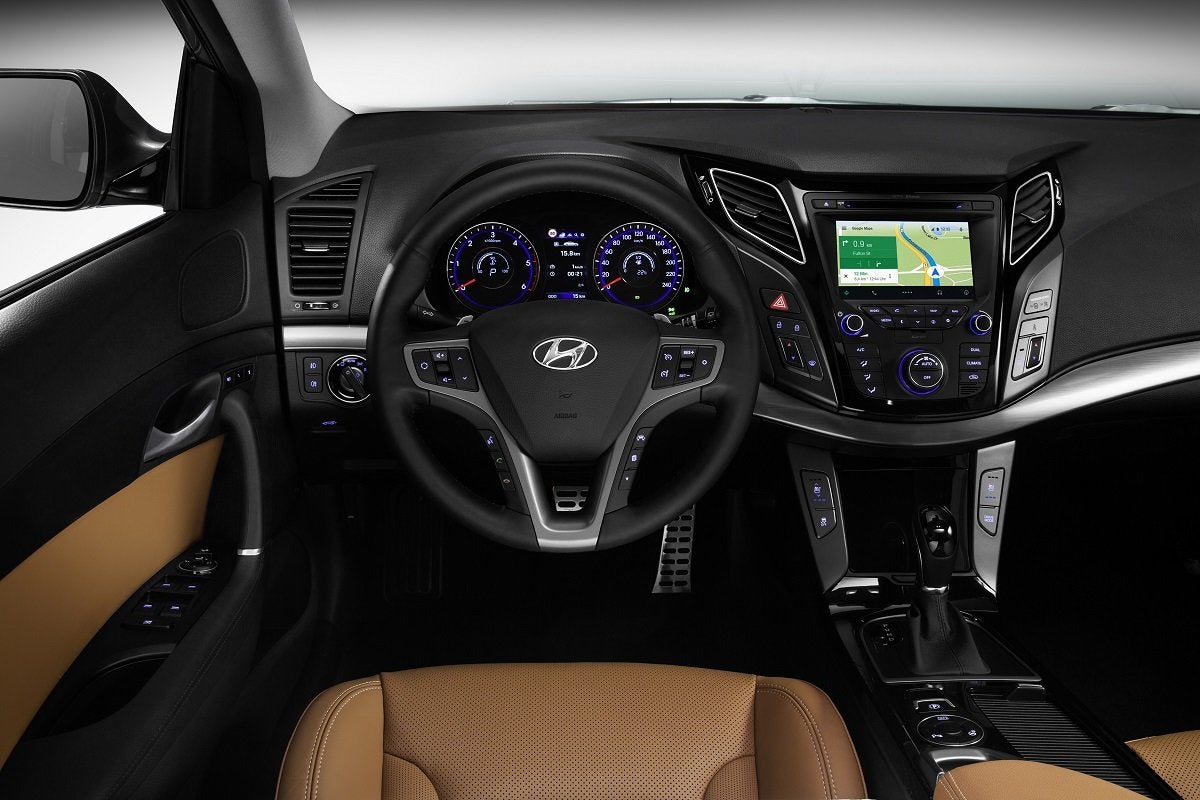
One of the strongest features of Android Auto is the Google Maps app. As more car companies stop bothering to include a satnav in their cars, smartphones have become the default choice for navigation software, because they are updated more frequently. You can use voice commands when driving to find the right destination, and the software then continually searches for the quickest route to avoid delays, unlike many built-in satellite navigation set-ups that don’t respond very quickly - if at all - to traffic conditions.
Another advantage of using Google Maps is the system recognises place and business names, and it also uses your internet browsing history on the phone and linked devices to identify possible destinations. This means you don’t even need to know the postcode for where you want to go. Alternatively, you could also use other third-party navigation apps like Waze if you prefer its functionality.
Can I Use Android Auto in an Older Car?
There are two ways to use Android Auto in an older car. The first is to upgrade the head unit to one with compatibility from an aftermarket supplier, such as Kenwood, Pioneer, Samsung or Sony. You may also have to budget for having this head unit professionally installed into your car to make sure the screen fits and works. Once it’s fitted, you can use Android Auto just as you would in a brand new car.
The other option for an older car is to use the Android Auto app on your phone as the car’s head unit. This lets you have all of the apps and functionality of an in-car infotainment set-up, but it will be restricted by the size of the display screen. Also, you cannot touch the phone while driving, even if it’s mounted in a cradle, so you’ll need to use voice commands.
Is it Safe to Use Android Auto While Driving?
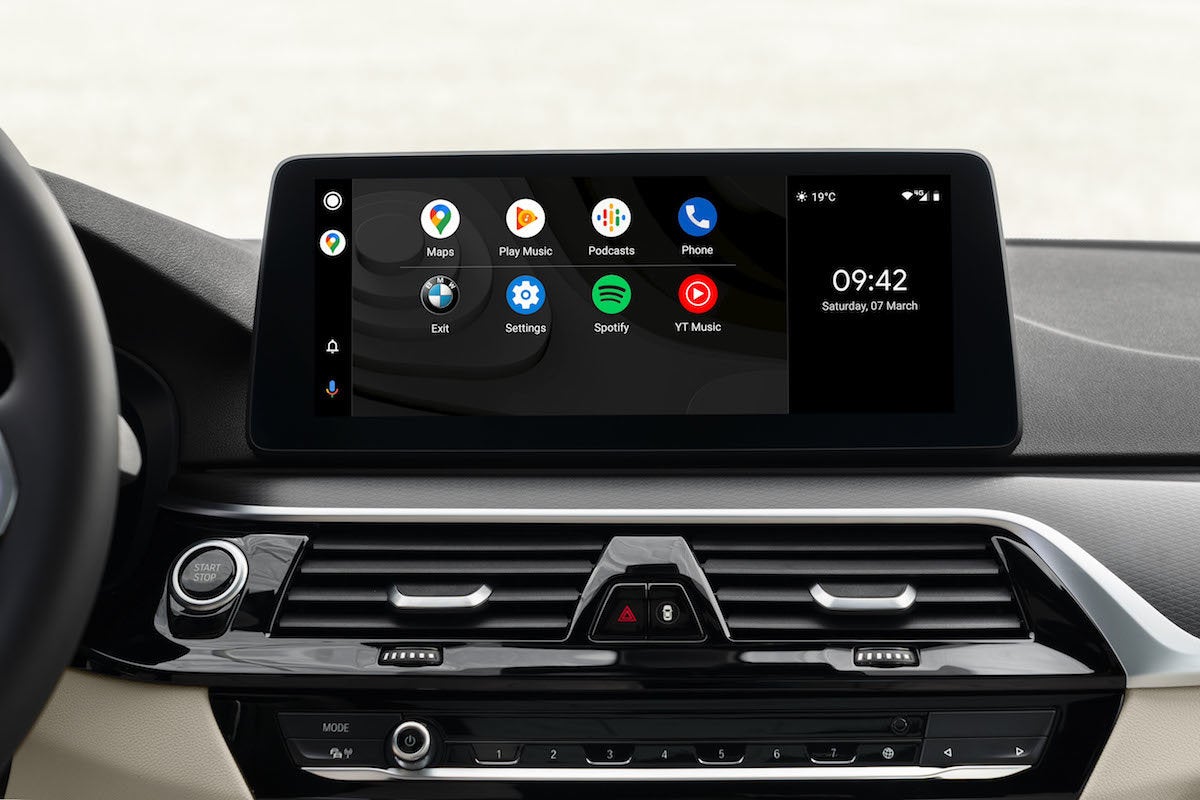
Using Android Auto in any compatible car is as safe as working the car’s own infotainment system. It’s easy to install and connects automatically when you plug in your phone to the USB cable attached to the car. You can then store your phone out of sight so it isn’t a distraction when driving.
Android Auto can be operated using the car’s existing controls, such as the buttons and dials or touchscreen. You can also operate it with steering wheel controls or voice commands for hands-free interaction.
What Phones Work with Android Auto?
Any Android phone using the version 5.0 operating system, which is also known as Lollipop, or newer can be run via Android Auto in your car. There are more Android smartphones in the world than iPhones, and nowadays, most car manufacturers offer Android Auto as standard, or as an optional extra.
Most of the big-name mobile phone companies can run Android Auto, including phones from HTC, LG, Samsung and Sony. Older Huawei handsets can also run Android Auto, but not since 2024 when the Chinese firm moved to its own HarmonyOS operating system as an alternative to Android.
Car Manufacturers Offering Android Auto
- Abarth
- Alfa Romeo
- Alpine
- Aston Martin
- Audi
- Bentley
- BMW
- BYD
- Changan
- Chery
- Citroen
- Cupra
- Dacia
- DS Automobiles
- Ferrari
- Fiat
- Ford
- Geely
- Genesis
- GWM
- Honda
- Hyundai
- Isuzu
- Jaecoo
- Jaguar
- Jeep
- KGM
- Kia
- Lamborghini
- Land Rover
- Leapmotor
- Lexus
- Lotus
- Maserati
- Mazda
- McLaren
- Mercedes-Benz
- MG
- MINI
- Mitsubishi
- Nissan
- Omoda
- Peugeot
- Polestar
- Porsche
- Renault
- Rolls-Royce
- SEAT
- Skoda
- Smart
- Subaru
- Suzuki
- Toyota
- Vauxhall
- Volkswagen
- Volvo
- Xpeng


